Introduction
In Odoo 18, every confirmed sales order automatically generates a delivery order (outgoing shipment). This document controls the movement of goods from your warehouse to the customer. With improved user experience, traceability, packaging and carrier integrations, Odoo makes delivery operations fast and transparent.
How Deliveries Are Created
Step 1: Confirm a Sales Order
Go to Sales → Orders → Create* Select a customer and add products
* Click Confirm
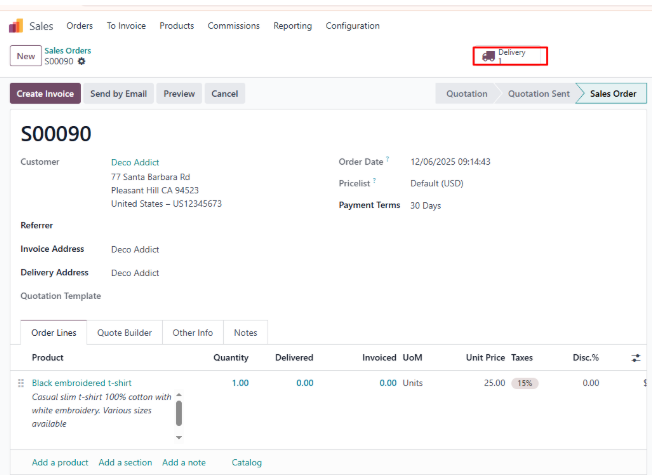
* Odoo automatically creates a Delivery Order linked to the Sales Order.
Step 2: Access the Delivery Order
* Click the Delivery smart button on the Sales Order.
* This opens the delivery document in the Inventory module
Inventory → Operations → Delivery → Select a Delivery Order
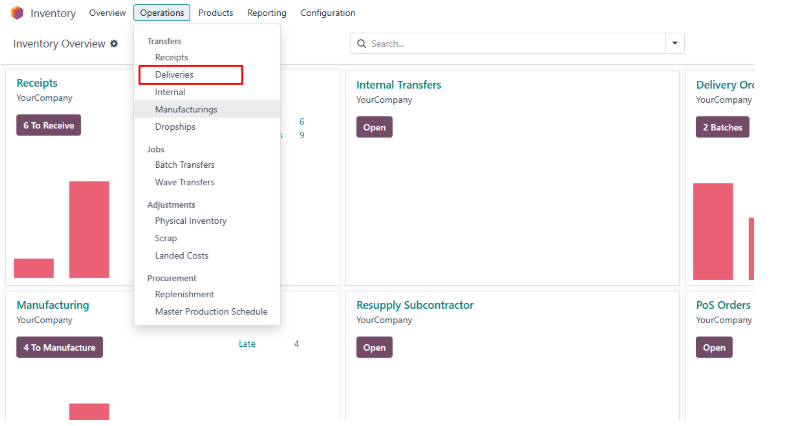
Outgoing shipments
* In the Warehouse Configuration tab, the default outgoing routes appear in the Outgoing Shipments field.
Type 1: Delivery (1 step)
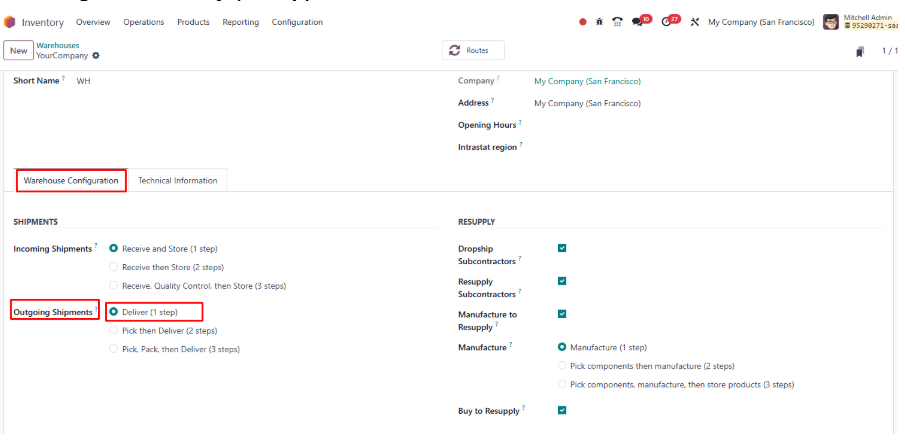
* In the sales order, select your customer and add a product using Add a product under the Order Lines tab. Save and click CONFIRM to validate the order.
* A delivery order is created automatically. Open it using the Delivery smart button on the Sales Order.
* To view the transfer, go to the Inventory dashboard and choose Delivery Orders.
* Your product transfer is now ready for delivery.

Type 2: Pick then Deliver (2 steps)
* To enable the two-step shipping method; open your warehouse settings in Odoo 15 Inventory. Under Outgoing Shipment, select Send goods in output and then deliver (2 steps)
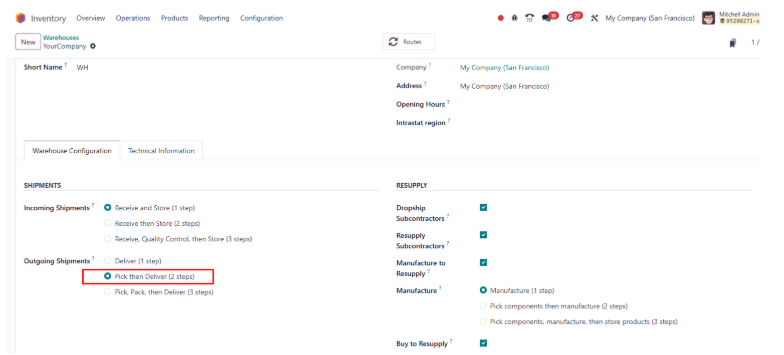
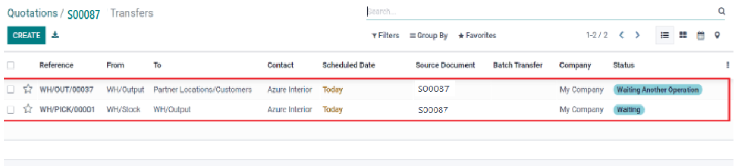
* In the two-step outgoing method, products are first picked from the output location and then delivered to the customer.
* Create a sales order by selecting the customer and adding a product under Order Lines. After confirming the order, click the Delivery smart button.
* In the Transfers window, you will see two waiting transfers with details such as Reference, From, To, Company and Status.
Type 3: Pick, pack, then Deliver (3 steps)
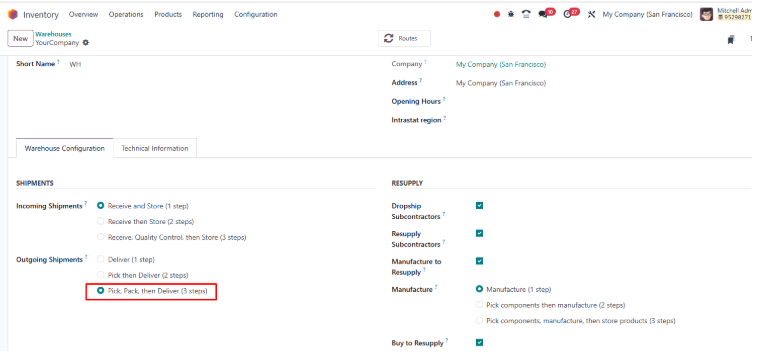
* For a three-step delivery flow, products move to Output, then Pack, and finally to the Customer.
* Enable this in Odoo 15 Inventory by opening your warehouse settings and selecting Pack goods, send goods to output, then deliver (3 steps) under Outgoing Shipments.
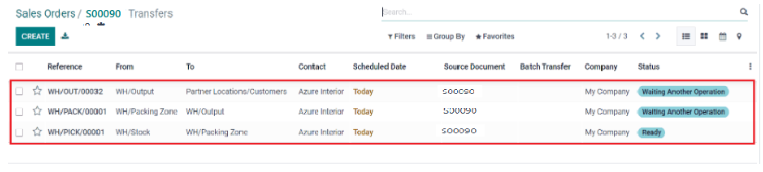
* Click CREATE on the Sales Orders page to add a new order. Select your customer and confirm the order.
* After confirmation, open the Delivery smart button.
* In the Transfers window, you will see three delivery orders with details like Source Document, From, To, Status, and Company.
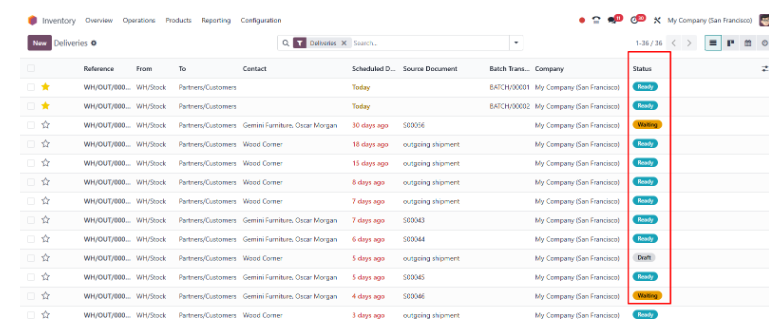
Here you will see a list of all delivery orders (outgoing transfers) with different statuses like
Waiting
* The delivery cannot start yet because stock or another required operation is pending.Ready
* All items are available. The delivery can be processed immediately.In Progress
* The transfer has been started but not yet completed.Done
* The delivery is fully completed, and stock is updated.Cancelled
* The delivery was voided and will not be processed.
When you open a delivery order, Odoo shows:
Basic Information
* Operation Type: Outgoing Shipment
* Source Document: The Sales Order reference
* Scheduled Date: Planned date to deliver
Set Done Quantities
* In the operations tab: Enter Done Quantity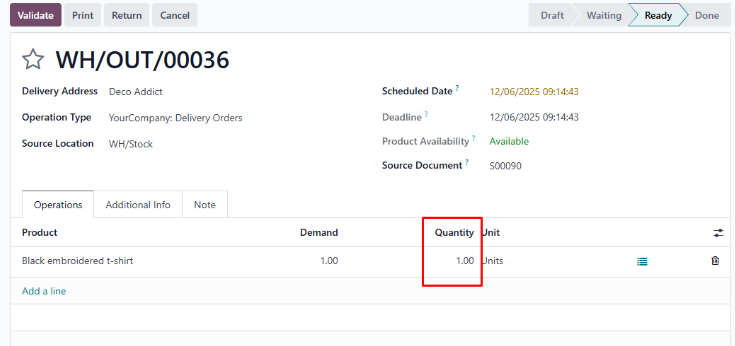
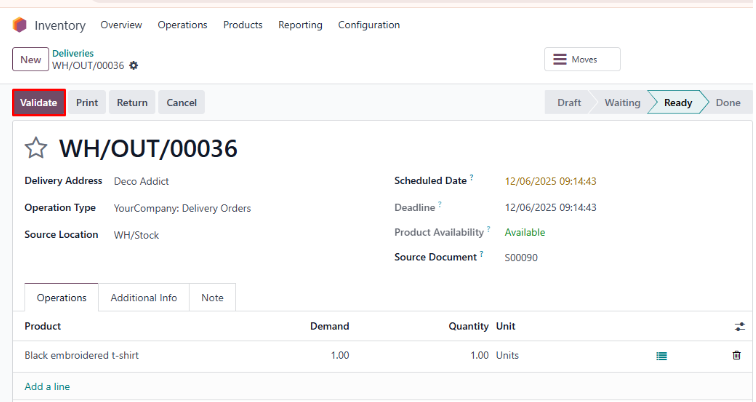
Step 3: Validate the Delivery
* Click Validate → The shipment is completed.
* Stock reduces automatically from the warehouse.
Print Documents
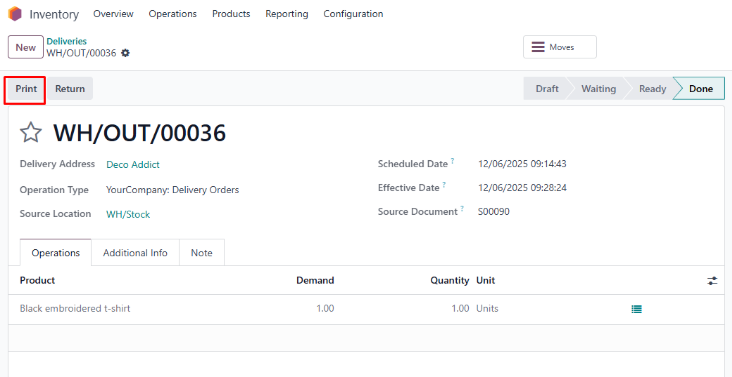
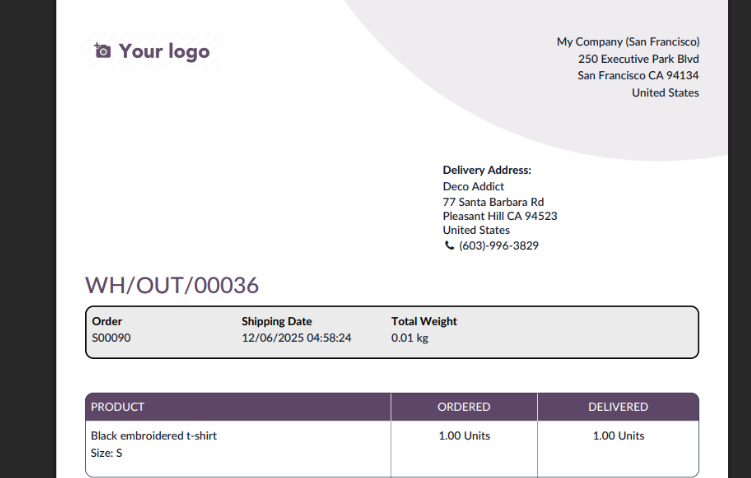
* You can print:
* Click print button, and a PDF will be downloaded
Step 4: Return Items
If products need to be returned:
* Click Return button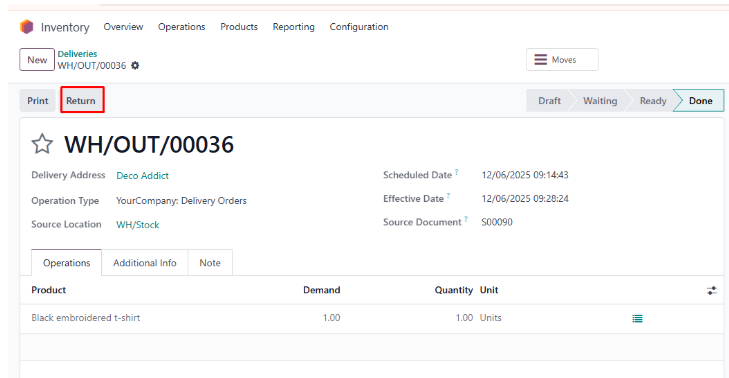
* Select quantity
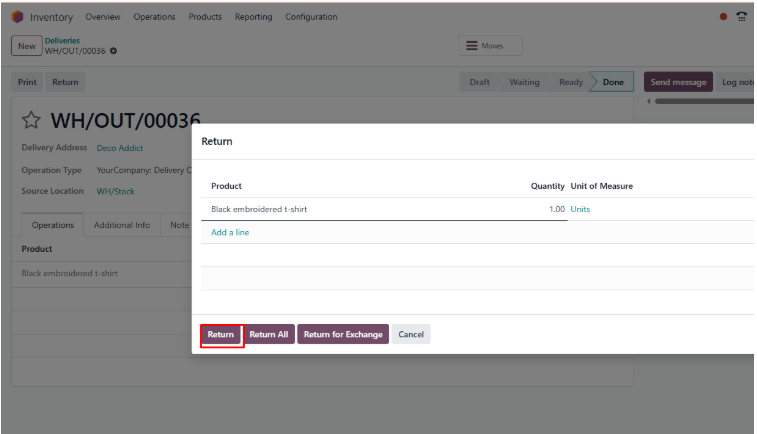
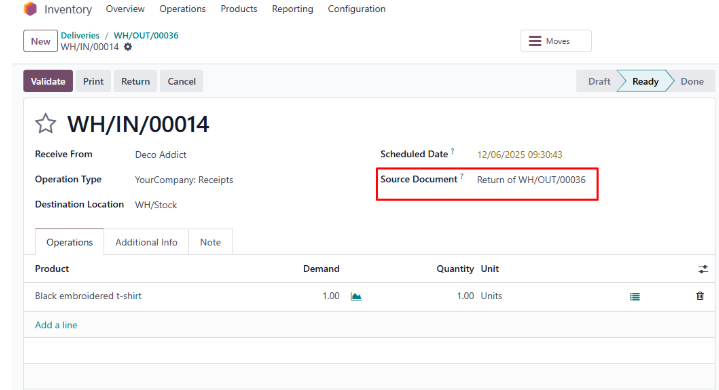
* Odoo creates a return transfer automatically
Purpose:
* To manage all outgoing deliveries efficiently
* To track product movement from warehouse to customer
* To ensure accurate stock updates during shipment
* To reserve stock before delivering
* To validate delivered quantities (full or partial)
Conclusion
Managing deliveries in Odoo 18 (Enterprise) is simple, organized and highly efficient. The system helps businesses handle outgoing shipments accurately—from stock reservation to validation, packaging and tracking. With clear workflows, real-time updates, and strong traceability features, Odoo ensures faster delivery processing, fewer mistakes and improved customer satisfaction.